
 GConvert
Batch Create Icons
This command lets you instantly convert several images into their icon equivalents in the ICO format.
Select "File" and "Batch Create Icons from Images". A window is displayed:
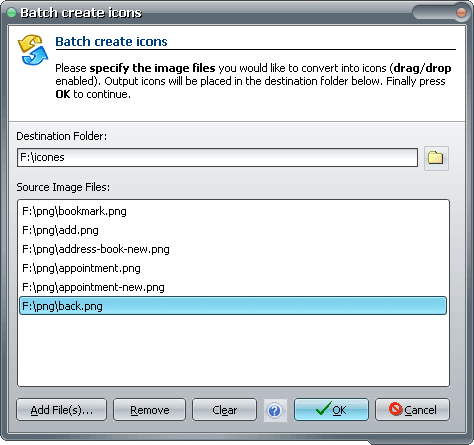
-
First of all, you have to determine the destination folder for the output files. You can select an existing folder using the Browse button or directly enter a custom path in the field. Note that if the path does not exist, it will be created.
-
Secondly you need to specify all images you want to convert into icons.
- To add a new image to the list, press the Add File(s) button and you will be prompted for selecting the file(s).
- To remove a file from the list, highlight it and then press Remove.
-
Press OK when you are ready.
How does it work?
Section titled “How does it work?”Each image is automatically converted into a single ICO file (same filename + .ico extension) placed in the destination folder.
Size: each icon file will have a single icon image whose size is the same as the original image (e.g. if you have a 32x32 PNG file, you will get a 32x32 ICO file).
Color depth is always set to 24-bit (even if your image source only contains 256 colors for instance); but if an alpha channel is available, then a 32-bit icon is created: alpha channels are always kept.
Batch convert cursors to icons
Section titled “Batch convert cursors to icons”It is possible to convert several cursors (.cur) into icons; in that case, icons will have the same images as the cursor.
Batch convert Macintosh icons to Windows icons
Section titled “Batch convert Macintosh icons to Windows icons”It is possible to convert several Macintosh icons (.icns) into Windows icons; in that case, all icon images are processed.