
 GConvert
GConvert
Icon toolkit for Windows.
Extract, convert, create and edit icons.
Change the icons of EXE and DLL files.
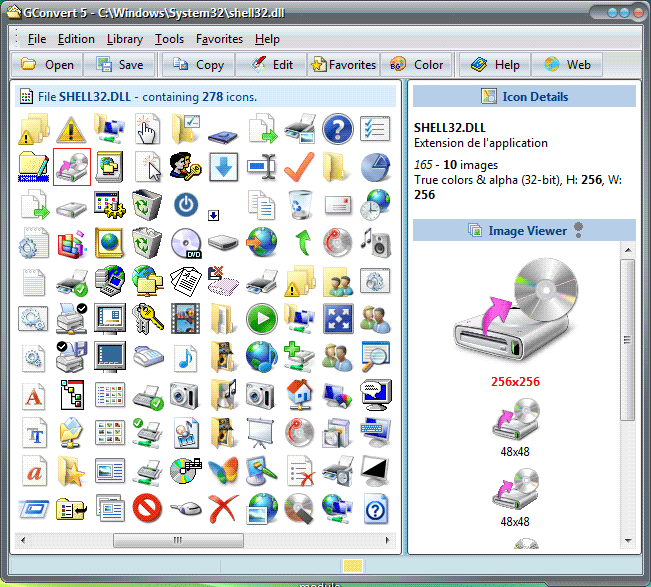
GConvert is a full-featured icon toolkit for Windows: it extracts icons from any file, converts them to images, creates icons from your pictures, replaces the icons inside EXE and DLL files, compiles icons into DLL files and manages ICL and ZIP icon libraries, without special knowledge.
15-day free trial · Version 5.2.0 · For Windows
.ico.bmp.png.psdFrom one icon
to a whole collection.
See GConvert at work, from choosing an export format to organizing your icon libraries.
 Enlarge image
 The right icon,
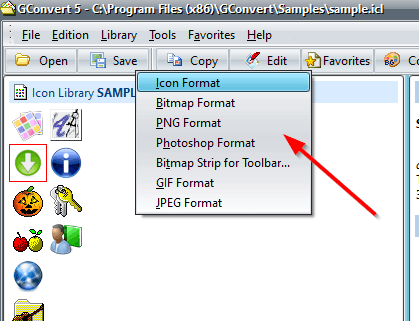
in the right format.
Save as ICO, BMP, PNG, or PSD natively,
or as GIF and JPEG through plug-ins.
Keep transparency in formats that support it.
 Enlarge image
 Give your icons
a home.
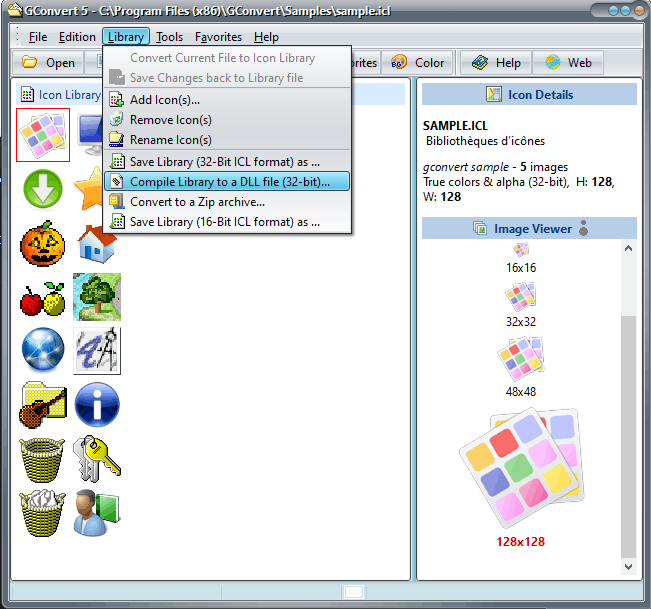
Collect icons in ICL libraries or ZIP archives, then compile them into a 32-bit icon DLL file like MORICONS.DLL. Keep favorites close and find the right image again.
 Enlarge image
 Change the icon
of any EXE or DLL.
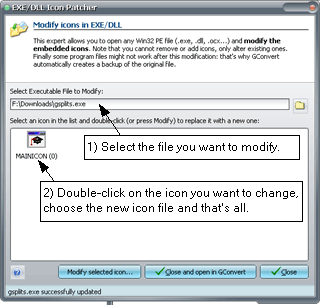
Open a 32-bit executable, DLL or OCX file, pick one of the icons compiled inside it and replace it with an ICO file of yours. GConvert backs up the original before saving.
Extract, convert, create
and organize icons.
Nine ways to work with icons on Windows, each with its own page of the feature tour.
Find your starting point.
Browse, extract and collect.
-
Browse Icons
Scan your folders for the hidden icons inside applications and system libraries, and export the results to an icon library.
-
Extract Icons
Open EXE, DLL, OCX, SCR, ICL, ICO, CUR, ICNS and ZIP files and see every image of every icon, from 16×16 to 512×512.
-
Manage Libraries
Create and edit ICL icon libraries, compile them into 32-bit DLL files like MORICONS.DLL, or convert them to ZIP archives and back.
Make it your own.
Convert, edit and create.
-
Convert Formats
Save as ICO, BMP, PNG, or PSD natively, or as GIF and JPEG through plug-ins. Convert one icon or a batch, with the alpha channel kept in formats that support it.
-
Edit Icons
Add, import, generate, remove and export the images of an icon, view its mask and alpha channel, and open an image in your own paint tool.
-
Create Icons
Turn a BMP, PNG, PSD, JPG or GIF picture into an icon, generate all the other sizes and color depths, or batch-create icons from several images.
-
EXE & DLL Icons
Change the icons embedded in an EXE, DLL or OCX file with the icon patch tool, and compile your icon libraries into 32-bit icon DLL files.
Keep every detail.
Sizes, colors and transparency.
-
XP & Vista Icons
Windows XP 32-bit alpha-blended icons and Windows Vista 256×256 PNG-compressed icons, with PNG compression added or removed.
-
macOS Icons
Open Macintosh ICNS and RSRC icons, from 16×16 to 512×512 with alpha channel, and convert them to Windows ICO files.
What is
GConvert?
Take the feature tourGConvert is not only an icon editor that creates icons from any image, but also an icon manager and collector: it creates, opens and saves icon libraries in ICL, DLL and ZIP format, browses your computer for hidden icons, manages icon favorites, creates cursors and much more. With its icon patch tool it replaces the icons embedded in EXE and DLL files, and it compiles your icon libraries into 32-bit icon DLL files.
GConvert reads every icon image from any icon resource, Windows EXE and DLL files, 16-bit and 32-bit ICL libraries, Windows ICO and Macintosh ICNS and RSRC files, CUR cursors and ZIP archives, and displays them in a list. Select the icon you want and convert it to the format of your choice: icon, bitmap, PNG, Adobe Photoshop PSD, JPG or GIF, or copy it to the Windows clipboard, or drag and drop it straight into your applications, documents and web pages.
Any icon size and color depth is supported, including the 256×256 icons of Windows Vista and later, the 256×256 and 512×512 icons of Mac OS X and the 32-bit alpha-blended icons introduced with Windows XP, drawn and saved correctly whatever the version of Windows GConvert runs on.
With its intuitive interface, GConvert is used without special knowledge: no complicated menus, buttons or dialogs, every important command is one click or one keystroke away, and a context-sensitive help file describes every step. GConvert comes as a free 15-day trial; a single-user license (EUR 20 or USD 25 without VAT) turns it into the registered edition, without any time restriction.
All the icon features
of GConvert.
Each entry links the page or the help topic that details it.
Extract and view
-
Extract icons from any file. EXE, DLL, OCX, CPL, SCR, 16-bit and 32-bit ICL libraries, ICO, CUR, Macintosh ICNS and RSRC files, and ZIP archives read without unzipping.
-
Every size and color depth. From 16×16 to 256×256 and 512×512, custom sizes included, from monochrome to 32-bit images with alpha channel, with properties, palettes, mask and alpha bitmaps shown for each image.
-
Search for hidden icons. The Icon Browser scans your folders, lists every icon found with its source file and exports the results to ICL libraries.
-
Windows XP alpha-blended icons. 32-bit icons with alpha channel are drawn and saved correctly on any version of Windows; the alpha channel is kept in PNG, PSD and 32-bit BMP files.
-
Windows Vista 256×256 icons. PNG-compressed icons are opened, created and stored in libraries; add or remove PNG compression for backward-compatible icons.
-
Macintosh icons. ICNS and resource fork RSRC files, from 16×16 to the 128×128, 256×256 and 512×512 OS X formats, converted to Windows ICO files.
Convert and export
-
Convert icons to images. Save as ICO, BMP, PNG, or PSD natively, or as GIF and JPEG through plug-ins. Smaller 8-bit PNG files can be made for web pages.
-
Batch export. Save or convert several selected icons, or a whole library, in one click, with an optional filter on image sizes and color depths and a filename mask.
-
Drag and drop. Drag converted icons from GConvert into Windows Explorer, Word or image tools, as a file or as bitmap data; drop any file onto GConvert to see its icons.
-
Export to a web page. The Icon Web Export expert writes an HTML page with all the icons of a file converted to PNG.
Create and edit
-
Create icons from images. ICO, BMP, PNG, PSD, RSRC, ICNS, and CUR files, GIF and JPEG through plug-ins, or the clipboard; crop the picture and choose the size and color depth.
-
Icon editor. Add, import, generate, remove and export the images of any icon, view image, mask and alpha channel, and open an image in your own paint tool.
-
Generate other images. All the sizes and color depths of an icon from a single source image, transparency and alpha channel preserved; batch-create icons from several pictures.
-
Cursors and favicons. Turn an icon into a Windows cursor with a hotspot you place and test, or into a favicon.ico for your website.
Organize and more
-
Icon libraries. Create, open, edit and save ICL libraries in 16-bit and 32-bit format: add, rename and remove icons, or convert any EXE, DLL or ZIP into a library.
-
Compile icons into a DLL file. Turn an icon library, or any EXE, ICO or ZIP converted into one, into a true Win32 icon DLL like MORICONS.DLL, recognized by Windows and loadable from your applications with LoadLibrary and LoadIcon.
-
ZIP archives both ways. Convert a library to a ZIP archive ready for the Internet, and resave a ZIP of icons as an ICL library.
-
Favorites. Favorite icon files grouped by categories, and favorite folders reachable from the Open dialog box.
-
Change the icons of EXE and DLL files. The icon patch tool opens any 32-bit executable, DLL or OCX file, lists the icons compiled inside it and replaces the one you pick with an ICO file of yours, after a backup copy of the original.
-
Skins, clipboard and shortcuts. Copy any image, mask or alpha channel to the clipboard, open icon files from the Explorer context menu, change the look with skins, and press F1 for the help file.
Frequently asked questions
about GConvert.
Short answers, with the page or help topic that goes further.
What is GConvert?
GConvert is a full-featured icon toolkit for Windows: it extracts icons from any file, converts them to images, creates icons from your pictures, replaces the icons inside EXE and DLL files, compiles icons into DLL files and manages ICL and ZIP icon libraries, without special knowledge. It reads any icon resource, EXE, DLL, ICL, ICO, CUR, ICNS and ZIP files, shows every image of every icon, and saves them as ICO, BMP, PNG, or PSD files.
Introducing GConvertIs GConvert free?
GConvert is a free 15-day trial. A single-user license costs EUR 20 or USD 25 without VAT; it turns the trial into the registered edition, with no time restriction, free minor upgrades and priority technical support by e-mail and forum.
Buy a licenseWhich files can GConvert extract icons from?
Any file containing icons: Windows executables (EXE), DLL, OCX, CPL and SCR files, icon libraries in 16-bit and 32-bit ICL format, Windows ICO files, cursors (CUR), Macintosh ICNS and resource fork RSRC files, and ZIP archives, which are read without unzipping.
Extract any iconWhich image formats can GConvert convert icons to?
Save as ICO, BMP, PNG, or PSD natively, or as GIF and JPEG through plug-ins. The alpha channel of 32-bit icons is embedded in PNG, PSD and 32-bit BMP files, and smaller 8-bit PNG files can be made for web pages.
Convert icons to imagesHow do I convert a BMP, PNG, GIF or JPEG picture to an icon?
Choose File | Convert picture to icon, select the picture, keep the whole image or crop a part of it, then set the size and color depth of the icon image. GConvert resizes and converts the colors, and Generate other images adds the other sizes. Export the result as an ICO file, or convert several pictures at once with Batch Create Icons from Images.
Create icons from imagesWhat is an icon library (ICL) file?
An ICL file is a 16-bit or 32-bit DLL that holds only icons, the standard icon library format supported by all versions of Windows. GConvert creates, opens, edits and saves ICL libraries, compiles them into 32-bit icon DLL files like MORICONS.DLL and converts them to ZIP archives, and back.
Manage icon librariesCan GConvert change the icon of an EXE or DLL file?
Yes. The icon patch tool, Tools | Modify Icons in EXE/DLL, opens any 32-bit Windows executable, DLL or OCX file, lists the icons compiled inside it and replaces the one you select with an icon from an ICO file. The file is saved immediately, after a backup copy of the original has been made. Prepare the new icon as an ICO file first, with GConvert if needed.
Modify icons in EXE and DLL filesHow do I compile icons into a DLL file?
Open an icon library in GConvert, or turn any icon source into one first: Library | Convert current file to icon library works on an EXE, a DLL, ICO files or a ZIP archive of icons, and the Icon Browser exports a folder scan to a library. Then choose Library | Compile Library to a DLL file (32-bit): the result is a true Win32 icon DLL, similar to MORICONS.DLL. Windows recognizes it, to change the icon of a folder for instance, and applications load it with LoadLibrary and LoadIcon.
Create 32-bit DLL filesDoes GConvert support Windows XP alpha-blended and Windows Vista 256×256 icons?
Yes. GConvert creates, reads and writes 32-bit icons with an alpha channel, shows the alpha channel on its own tab and keeps it when converting to PNG, PSD or 32-bit BMP. It also opens, creates and saves the 256×256 PNG-compressed icons introduced with Windows Vista, and adds or removes their PNG compression.
Vista icons in GConvertCan GConvert open Macintosh icons?
Yes. GConvert recognizes Macintosh icons stored in ICNS and resource fork RSRC files, from 16×16 to the 128×128, 256×256 and 512×512 Mac OS X formats, with alpha channel. They work like Windows icons and can be converted to ICO files or images and added to icon libraries. ICNS export is not available in the current version.
Macintosh icons in GConvertCan I edit the pixels of an icon in GConvert?
Not with paint tools: the GConvert editor has no pen or brush by design. It adds, imports, generates, removes and exports the images of an icon, and its Open image in editor command sends an image to the icon or bitmap editor you already use, then imports the changes back.
The icon editorWhich versions of Windows does GConvert run on?
GConvert 5.2.0 runs on Windows 11, 10, 8, 7, Vista and XP, and the older Windows 2008, 2003, 2000, ME, 98 and 95. The installer, GCONVSET.EXE, is 3.3 MB and digitally signed.
Download GConvertYour next icon starts here.
Download the free 15-day trial of GConvert and take control of your icons.