
 GConvert
 Enlarge image
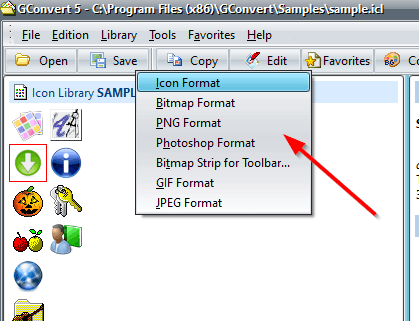
 Which formats can GConvert convert icons to?
Natively, GConvert saves icon images to Windows icon files (.ico), bitmaps (.bmp),
Portable Network Graphic files (.png) and Adobe Photoshop files (.psd). Plug-ins extend
the list with GIF, JPEG and other formats. Each format has its own export options: an ICO file can receive all
the images of the icon, only the selected image, or one image per file, with or without PNG compression; a
bitmap can always be written in 24-bit or keep the exact pixel format of the icon image, from 1-bit to real
32-bit bitmaps.
Transparency handled per format
PNG files are supported in both directions and are compatible with all standard graphic tools: the alpha channel of a 32-bit icon is embedded in the PNG file when exporting, and imported back when a PNG becomes an icon. Smaller 8-bit PNG files can be created for web pages. When saving a 32-bit alpha-blended icon to GIF, partial transparency is automatically changed into bit transparency without losing quality, and for formats without any transparency the transparent areas are filled with the background color you set.
Batch conversion
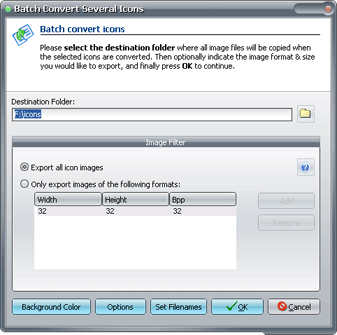
Select two or more icons in the Main Viewer, or a whole icon library with Ctrl+A, and the Save
button converts them all in one click. You choose the destination folder, created if it does not exist, and
optionally a filter on the image sizes and color depths to export: by default every image of every selected icon
is converted. Output filenames follow a mask that you define, such as
{iconname}-{width}x{height}x{pixelformat}.
 Enlarge image
 Export a whole icon set to a web page
The Icon Web Export expert takes an icon source file and creates an HTML page showing all of its icons converted to PNG, with the page title, author and e-mail address of your choice. GConvert only writes the tags needed to display the icons, so the page can be customized in any HTML editor.