
 GConvert
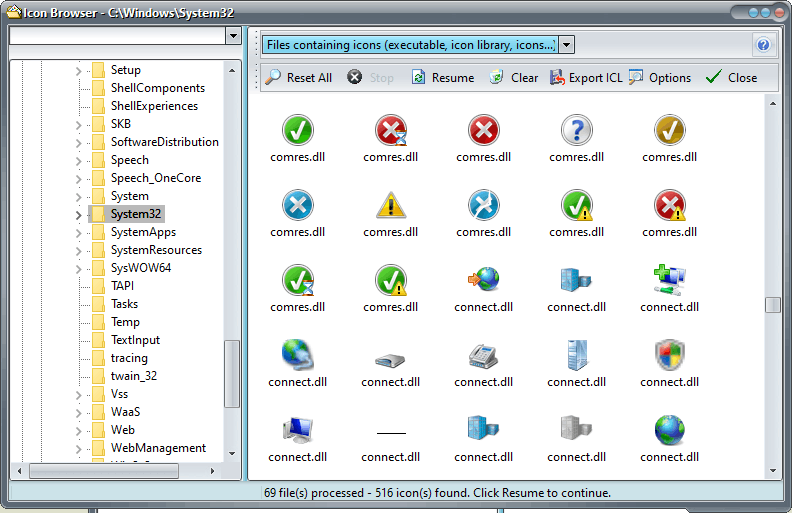 Enlarge image
 Which files does the Icon Browser scan?
GConvert searches for icons in .EXE, .DLL, .ICL, .RSRC,
.ICNS, .ICO, .OCX, .SCR and .ZIP files, among
others. A file filter at the top of the window restricts the search to files containing icons (the default,
which leaves ZIP archives out), to Windows icon files only, to Macintosh icon files only, to ZIP archives only,
or to all files without restriction.
A good source of hidden icons is the DLL files of your Windows system folder: each one can hold dozens of icons that no application ever shows you.
How a search works
Open the Icon Browser with File | Browse for icons or Ctrl+W. On the left, a folder tree like the one in Windows Explorer and a list of your recently visited folders let you pick the folder to scan. Press Search: GConvert reads every file in the folder, looks for icons in each of them and displays each icon found on the right, with the name of the file it comes from.
The search runs until every file has been processed or until you press Stop; an option pauses it every 250 files. A stopped search can be resumed at any time without losing the icons already found, and clicking an icon in the list can open its source file in the main window, so that any other operation can be applied to it. An option in the Environment Options starts the search automatically as soon as a folder is selected.
Export the results to an icon library
Once a search is complete or stopped, Export ICL saves all listed icons to a new icon library
in ICL format, for your personal collection for instance. You choose whether to include every image of each
icon or only the 32×32 images, whether to open the new library in GConvert right away, and whether to split the
result into several smaller libraries of a given number of icons each (200 to 500 is a good limit), named
mylib0.icl, mylib1.icl and so on.
Viewing icons in the main window
When you open any icon source file, the Main Viewer lists all the icons it contains, displayed at 32×32 as in Windows Explorer or at 16×16 or 48×48 if you prefer. Selecting an icon shows every image it holds, with its size and color depth, in the Image Viewer. Several icons can be selected at once for batch operations such as saving or removing them from a library, a double-click opens the icon in the icon editor, and a right-click gives access to the common operations.