
 GConvert
 Enlarge image
 Create cursors from icons
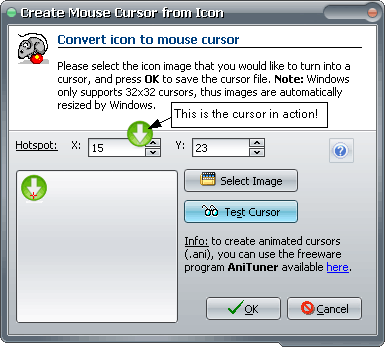
Tools | Convert Icon to Cursor turns any icon image into a Windows mouse cursor
(.cur). Click the preview to place the hotspot, the pixel that marks the exact screen position of the
pointer, press Test cursor to try it as your mouse pointer for 30 seconds, then save. Cursor
files from monochrome to 32-bit with alpha channel are imported and exported, and a cursor can be opened in
GConvert like an icon. For animated cursors, see AniTuner.
Drag and drop into other applications
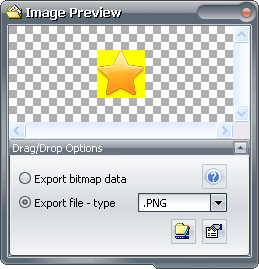
Double-click an icon image, or press Ctrl+R, to open the Icon Preview window, then drag the image onto a drag-and-drop-aware application such as Windows Explorer, Microsoft Word or an image editor. GConvert supports both kinds of drop: as a file, saved in the format of your choice with a filename base you define, or as bitmap data for applications like Word, without any file on disk. The other way round, drop any file onto GConvert to view its icons, or an image file to convert it into an icon.
 Enlarge image
 Favorites and favorite folders
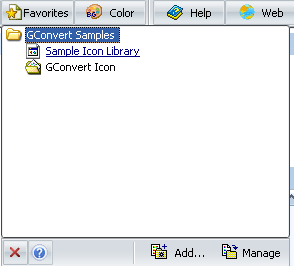
A favorite is a shortcut to an icon source file you open often: add the current file with Ctrl+D, list them with Ctrl+I or from the toolbar, and group them by categories as in a web browser. My Favorite Paths keeps your favorite icon folders at hand directly in the Open dialog box, and GConvert remembers the folders where you last opened, saved or converted icons.
 Enlarge image
  Enlarge image
 Replace icons in EXE, DLL and OCX files
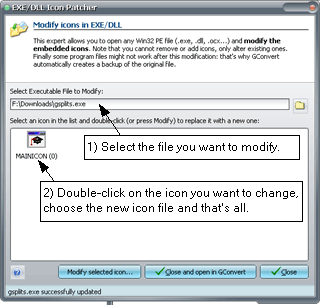
The icon patch tool, Tools | Modify Icons in EXE/DLL, opens any 32-bit Windows executable, DLL or OCX file, lists its compiled icons and replaces the one you select with an icon from an ICO file. The file is saved immediately, after a backup copy of the original has been made.
 Enlarge image
 Also included
- Export all the icons of a file to a web page, converted to PNG, with the Icon Web Export expert.
- Copy any icon image, mask or alpha channel to the clipboard, and paste a picture from the clipboard to create an icon.
- Pick a background color from anywhere on the screen for conversions to formats without transparency.
- Open icon files from Windows Explorer through the optional context menu entry that GConvert adds.
- Change the look of GConvert with skins: several are shipped, and more are available.
- Most operations are available through keystrokes, context menus and tool buttons, and the versatile Environment Options let you customize GConvert.