
 GConvert
 Enlarge image
 An icon editor, not a paint program
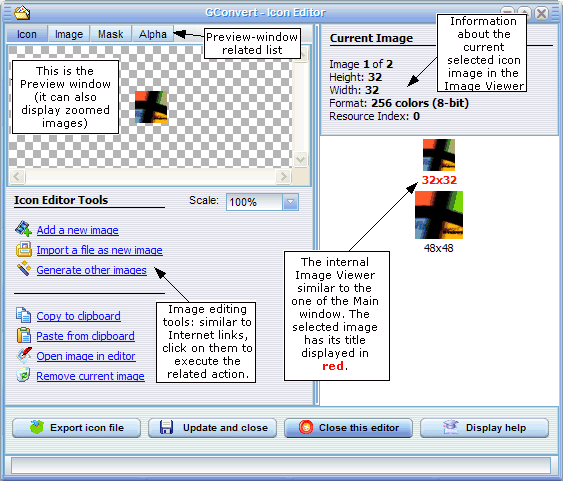
The GConvert editor is deliberately not a standard paint program: it has no pen, brush or selection tools, because you probably already have an imaging tool you know well. It works like an image converter and manager instead. For pixel work, Open image in editor sends the current icon image to the external icon or bitmap editor of your choice, set once in the Environment Options, and GConvert imports the changes back.
What you can do with each icon image
The editor lists every image of the icon with its size and color depth, and its preview window shows the selected image at the scale you want in four views: the icon as Windows draws it, the color image alone, the mask bitmap, and the alpha channel of 32-bit images. The editing tools let you add a new image, import a picture file as an image, generate other images, copy an image to the clipboard or paste one from it, remove the current image, export the icon to an ICO file and update the icon in its library.
Generate other sizes and color depths automatically
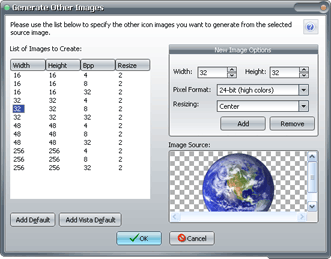
Generate other images creates all kinds of icon images from a single source image: pick the largest image with the highest color depth, list the widths, heights and pixel formats you need, from monochrome to 32-bit with alpha channel, and choose a resizing method. Color conversion and resizing are performed automatically, transparency is preserved, and the alpha channel of 32-bit images is kept. The default images of a Windows Vista icon, for instance, are created in two clicks.
 Enlarge image
 PNG compression on or off
For every icon image, the editor shows whether PNG compression is used and lets you enable or disable it, so you can make Vista-style 256×256 icons smaller or make them backward-compatible with earlier versions of Windows.