
 GConvert
 Enlarge image
 Which images can become icons?
GConvert natively imports bitmaps (BMP), Portable Network Graphic files (PNG), Adobe
Photoshop files (PSD), Windows icon files (ICO), mouse cursors (CUR) and
Macintosh icon files (ICNS, RSRC). Plug-ins add GIF, JPEG and more. An image can also
be pasted straight from the clipboard, and the alpha channel of a 32-bit bitmap, a PNG or a PSD file is imported
with the picture.
Choose the part, the size and the colors
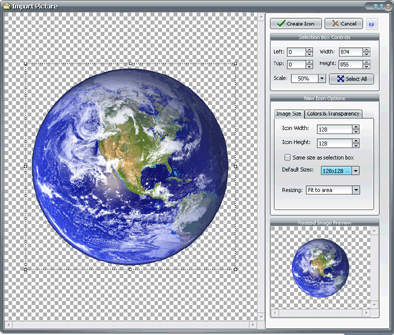
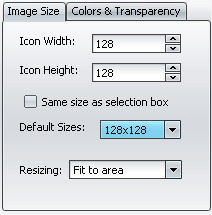
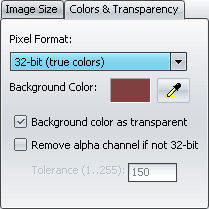
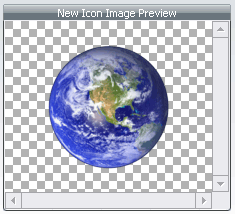
Choose File | Convert picture to icon, or Import a picture as image in the icon editor. The Import Picture window shows the picture with a selection rectangle that you move and resize, or set by its coordinates, to import a detail of a large picture or the whole image. Then set the width and height of the new icon image, from the predefined icon sizes or any custom size, and its color depth from monochrome to 32-bit with alpha channel. Resizing and color conversion are automatic.
 Enlarge image
  Enlarge image
 Complete the icon with generated images
A Windows icon usually holds several images. Once the first image is created, Generate other images produces the 48×48, 32×32, 16×16 and other variants you list, in the color depths you want, from that single source, with transparency preserved. Export the result as an ICO file or add it to an icon library.
 Enlarge image
  Enlarge image
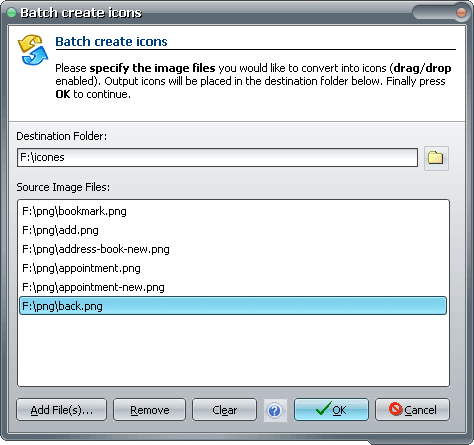
 Batch-create icons, and favicons too
File | Batch Create Icons from Images converts several image files into their ICO equivalents in
one operation: pick a destination folder, add the files, press OK. A website icon is a special case of the same
workflow: import the source image, keep only 16×16 images in the icon, and export it as
favicon.ico.
 Enlarge image