
 GConvert
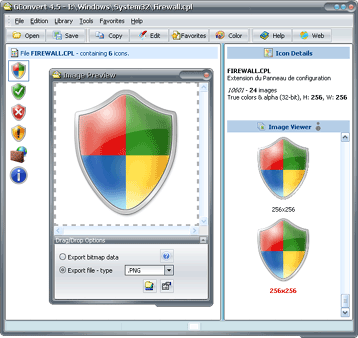 Enlarge image
 What changed with Vista icons?
A 256×256 icon image is large, so Vista stores it in the PNG (Portable Network Graphic) format inside the ICO
file, while the other images of the icon stay traditional bitmaps. The difference is significant: the
GConvert.ico sample shipped with GConvert takes 146 KB with PNG compression and 355 KB without.
The drawback is that PNG-compressed icons are not recognized by versions of Windows older than Vista.
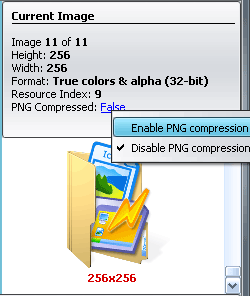
Add or remove PNG compression
The PNG Compressed command of the icon editor enables or disables PNG compression for any icon image, and the same option is available when an icon is saved to an ICO file. Remove it to produce icons that older versions of Windows display, keep it to produce the smallest files. Only 256×256 images are compressed in Vista's own icons, but compressing images of other sizes is allowed and such icons are still recognized.
 Enlarge image
 Create 256×256 images from your existing icons
With Generate other images in the icon editor, GConvert creates the 256×256 image of an icon from the largest image it already contains, with transparency and alpha channel preserved; the default images of a Vista icon can be created in two clicks. The resulting icons can be added to ICL libraries, compiled into DLL files or exported to images like any other icon.