 GConvert
Replace icons in EXE/DLL
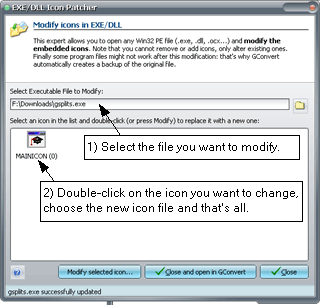
If you want to modify icons embedded into an executable, DLL, OCX file, then you can use this expert. The latter opens any Win32 Portable Executable (PE) file, lists all of its compiled icons, and then lets you replace them with new ones.
To open this expert, select the "Tools|Modify Icons in EXE/DLL" menu command.
Icons embedded into executable files generally represent or are directly used by an application. Windows also uses icons to display the application in its taskbar for example, or in Windows Explorer shell lists.
To modify icons in a PE file
Section titled “To modify icons in a PE file”- Select the EXE/DLL/OCX file containing the icons that you want to change. You can hit the Browse button near the "Executable File" field in order to select the file. When done, the full path to the source PE file will appear in the field, and all icons will be listed.
Note that GConvert will display 32x32 icon images only, even if icons do not contain 32x32 images (in this case, images are resized).
- Highlight the icon you want to replace in the list and click "Modify selected icon". GConvert will ask you to select the icon file containing the icon resource that will replace the highlighted icon of the PE file. GConvert requires you to select an icon file (
.icoformat). Icon files should generally be prepared before you open the expert. Finally, when the shell open dialog is closed, the old icon gets replaced by the new one and the PE file is immediately saved (a backup copy of the original PE file is made before).
- Press Close to close the expert. Note that if the file was previously opened in GConvert, it will be reopened; you can also open the modified file using "Close and open in GConvert".