
 GConvert
Working With Favorites
The Favorites menu offers you some functions to define and manage your icon source favorites. A favorite is a shortcut to a file generally often selected, it lets you save time by not selecting this file each time with the shell open dialog box.
Favorites are stored in the Favorite list: you can display this list each time by:
- clicking on Favorites in the toolbar (the Favorites window can be displayed like a drop-down menu: see the Environment Options).
- selecting the "Favorites|View Favorites" menu command.
- pressing
CTRL+I.
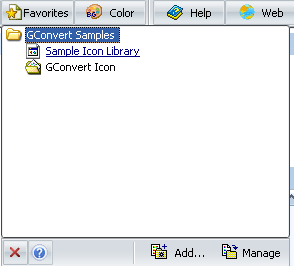
A small window containing your favorites is displayed: click on a favorite item to open it in GConvert. Generally the Favorites window will close when a favorite has been selected.
How to add a favorite?
Section titled “How to add a favorite?”After you have opened the file that you would like to add to your favorites, select the "Favorites|Add to Favorites" menu command or press CTRL+D. Then your favorite shortcut will be added to the favorite list.
Grouping favorites by categories
Section titled “Grouping favorites by categories”Favorites may be grouped by categories. It is similar to the favorite system you find in applications such as Web browsers. To create/manage categories, you need to open the Favorite manager. A category cannot be a child of another category.
Using the Favorite Manager:
Section titled “Using the Favorite Manager:”You can open it by selecting the "Favorites|Manage Favorites" menu command or by pressing CTRL+B. The Favorite Manager window will be then displayed (note that if the favorite window is visible while you open the Favorite manager, it will be automatically hidden).
All of your favorites are listed in a tree view: categories are represented with a small yellow folder icon while favorite icon items are represented using their own shell image (generally the first icon of icon libraries for instance).
Three buttons allow you to manage these favorites. The first one called "Rename" allows you to rename the selected favorite: the name will become editable in the list after you press the button. To save changes, click anywhere on the list to make the editing focus disappear.
The second one called "Delete" lets you delete the selected favorite after confirmation.
Finally the third one called "New Category" lets you create categories. You will be first prompted for entering the name of the new category and then it will be added to the list. You can then use drag/drop operations to move other icon items onto the new category in order to change them into children.
Finally you can change the order of your favorites by using a "drag/drop" operation. Categories may become children of other categories.